Step 1
Capture
Click the Fully icon to capture the complete webpage from top to bottom.
 Fully McFullface
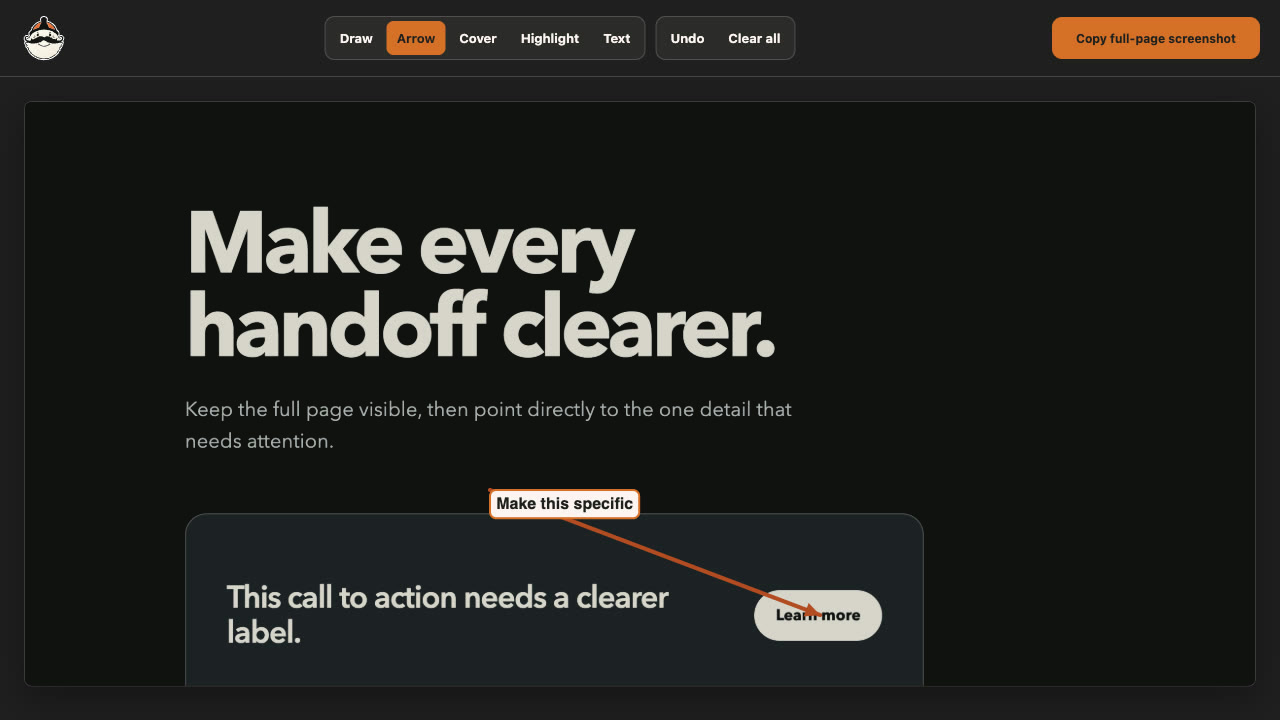
Capture a complete webpage, mark up your changes and copy one finished PNG. Fully McFullface is designed for showing ChatGPT, Claude, Codex, Lovable or another image-capable tool exactly what you mean.
Both extensions capture a webpage from top to bottom and process screenshots locally. The main difference is what each product is designed to help you do after the capture.
| Feature | Fully McFullface | GoFullPage |
|---|---|---|
| Intended workflow | Annotated visual prompts, feedback and handoffs | General capture, saving, printing and exporting |
| Full-page webpage capture | Yes | Yes |
| Annotation tools | Draw, Arrow, Highlight, Cover and Text are included | Not included in the free capture workflow; cropping, editing and annotation are Premium features |
| Finished result | One finished PNG copied directly to the clipboard | Capture opens in a result tab for downloading or exporting |
| Edit without an account, trial or card | Yes | No; edited downloads require a Premium trial |
| PNG, JPEG and PDF export | No; PNG clipboard copy only | Yes |
| Inner scrolling content | One dominant scrolling area on compatible web apps | Inner scrolling elements and embedded frames |
| Screenshot handling | Processed locally; temporary screenshots expire within ten minutes and are normally removed sooner | Stored locally in the browser according to GoFullPage’s FAQ |
Fully is not trying to replace every screenshot, export or archival tool. It is built around one useful endpoint: a complete webpage with clear annotations, ready to paste into the conversation where the next decision happens.
The whole page supplies context. Arrows, highlights, drawings, text and solid privacy covers show the AI tool, designer, developer or teammate where to look and what should change.
Fully McFullface is currently free to install and use.
Choose Fully when you want to:
Fully deliberately leaves out JPEG and PDF export, configurable page sizes and archival features so it can stay focused on one annotated PNG that is ready to paste.
The Fully workflow
Four focused steps turn the page into an AI-ready visual prompt.
Step 1
Click the Fully icon to capture the complete webpage from top to bottom.
Step 2
Add an arrow, highlight, drawing, short note or solid Cover.
Step 3
Copy the finished marked-up page to your clipboard as one PNG.
Step 4
Paste it into ChatGPT, Claude, Codex, Lovable or anywhere that accepts images.
Fully processes the capture and temporary screenshot on your device. It does not automatically send the image to ChatGPT, Claude, Codex, Lovable, Fully McFullface or any other service. You decide whether and where to paste it.
A full-page screenshot can contain personal, confidential or account information. Use the solid Cover tool before copying, then inspect the complete image before sharing it. Read the Privacy Policy for the exact boundaries.
Fully is deliberately narrow. It does not export JPEGs or PDFs, capture Chrome system pages or the Chrome Web Store, or replace specialist archival and screen-recording tools. Infinite feeds and genuinely wide horizontal layouts are not supported. Some unusually complex pages and pages with several similarly sized scrolling panels remain best effort.
Ready to try the workflow? Start with the Chrome screenshot guide, then use the AI coding guide to request a website change. Before sharing, check the screenshot privacy guide.
Fully McFullface is currently free to install and use. Its capture, annotation and clipboard-copy workflow does not require an account, trial or card details.
Yes. Use Draw, Arrow, Highlight, Cover and Text, then copy the completed page as one PNG.
Yes, when the destination accepts pasted images. You copy the PNG, open the AI tool and paste it yourself.
No. Capture, annotation and temporary storage happen locally. Fully does not automatically upload or send the screenshot.
No. Fully copies one finished PNG to the clipboard and does not currently export PDF or JPEG files.
Fully is specifically designed to capture, mark up, copy and paste a complete webpage as visual context for an AI tool.
No. It is designed for finite vertical webpages and compatible web apps. Protected Chrome pages, infinite feeds and some unusually complex layouts are not supported.